How to Fix 429 Errors When Crawling a Shopify Store


WRITTEN BY
Kev Wiles
I’m a Fractional SEO Specialist with 12+ years’ experience working with eCommerce brands. I focus on making SEO simple, clear, and effective helping businesses cut through the noise and unlock real growth.
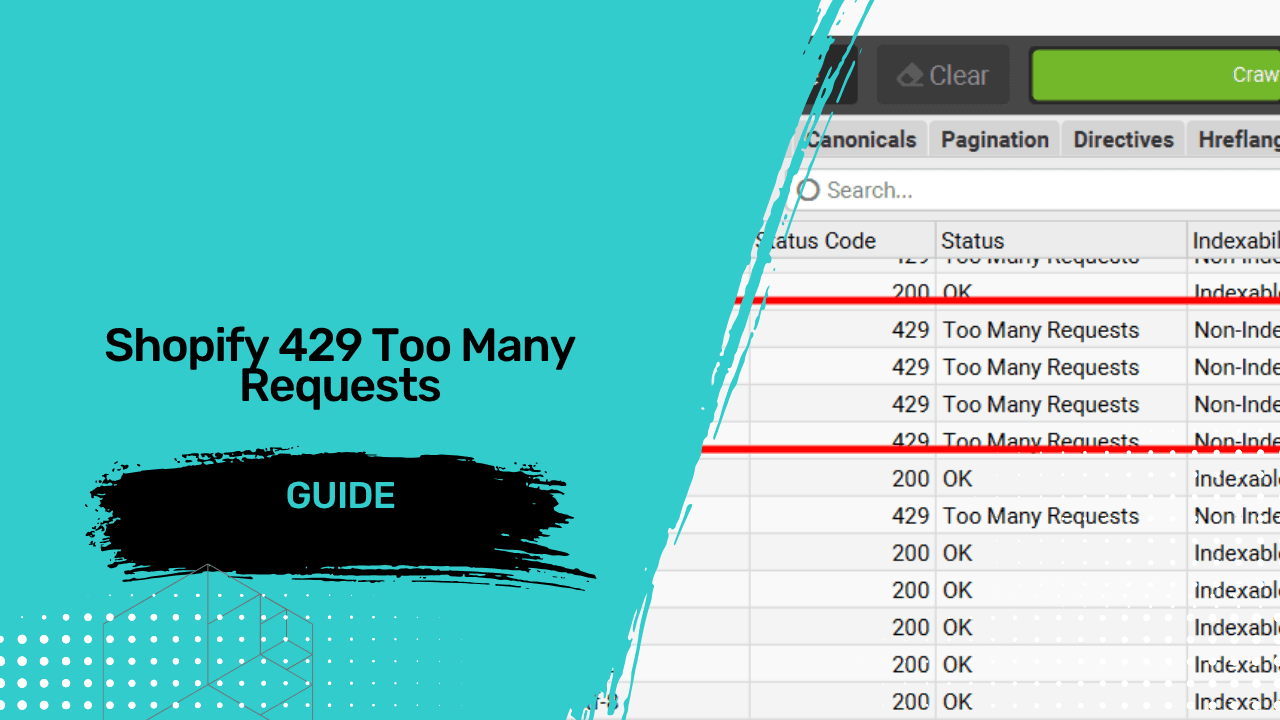
Shopify rate limits automated traffic it doesn't recognise. SEO crawlers like Screaming Frog and Sitebulb often hit HTTP 429 (Too Many Requests) errors partway through an audit, which leaves you with incomplete data. The fix is Shopify's crawler access feature, which uses the Web Bot Auth standard. You generate a signature in Shopify admin under Online Store > Preferences > Crawler access. Shopify then gives you three HTTP header values: Signature-Input, Signature and Signature-Agent. You add these as custom headers in your crawler, and Shopify treats your requests as coming from an authorised tool. Each signature applies to a single domain and lasts up to three months, so it needs regenerating on a regular schedule.
Why Shopify blocks your crawler
Shopify is a hosted platform, and its edge sits behind Cloudflare, which protects stores from excessive automated traffic. A desktop crawler sending requests at speed looks much like a scraper. Once Shopify decides the traffic is suspicious, it starts returning 429 responses instead of pages.
The problem isn't just the error itself. Sitebulb stops crawling once it gets a 429, and Screaming Frog records the affected URLs with no usable data. In both cases, you end up with an audit that looks complete but is missing chunks of the site. On a large catalogue, those gaps tend to land in collection pages and product templates, which are exactly the pages you need to assess. Without the full picture, you can't properly audit canonicals, indexed URL variants or internal linking.
Slowing the crawl down used to be the only workaround. It helps a bit, but it doesn't solve the problem, and on a store with tens of thousands of URLs it turns a one-hour crawl into an overnight job.
What Shopify's crawler access feature does
Shopify added crawler access in August 2025. It's built on Web Bot Auth, an open standard based on HTTP message signatures. You create a cryptographic signature in the store admin, and your crawler attaches it to every request it sends. Shopify checks the signature, recognises the request as coming from a tool the merchant has approved, and lets the crawl through without throttling.
This has no effect on how Google, Bing or AI platforms access the store. It only applies to tools you authorise yourself.
Step 1: Create a signature in Shopify admin
You need admin access to the store, or someone at the client with admin access who can do this for you.
In Shopify admin, go to Online Store > Preferences.
Scroll down to the Crawler access section and click Create signature.
Give the signature a descriptive name. Include the tool and the purpose, for example "Screaming Frog, Q4 technical audit", so it's easy to spot later.
In the Domain field, select the domain you plan to crawl.
Under Valid for, pick an expiry period. The maximum is three months.
Click Create.
Step 2: Copy the three header values
Shopify now shows the values that make up the signature. Each one is a header name paired with a header value:
Signature-Input, which describes what the signature covers
Signature, which is the cryptographic signature itself
Signature-Agent, which is always
"https://shopify.com"
Use the copy buttons rather than typing or retyping anything. These are long strings, and one wrong character will cause authentication to fail. Keep the double quotes around the Signature-Agent value, because they're part of the value.
Step 3: Add the headers in Screaming Frog
In Screaming Frog, go to Configuration > HTTP Header. Add each of the three headers as a separate entry, pasting the header name exactly as Shopify shows it and the value next to it. Then save the configuration.
If you crawl this store regularly, save it as a named configuration profile so you don't have to redo this every time.
Step 4: Add the headers in Sitebulb
In Sitebulb, the headers are added at the audit setup stage. When you create the audit, open Crawler Settings and scroll down to the Custom Headers area. Add the same three header names and values, then start the audit.
Step 5: Test before running the full crawl
Before committing to a full crawl of a large store, run a short test. Crawl a single collection or cap the crawl at a few hundred URLs, then check the response codes. If you still see 429s, the cause is almost always a header name typo, a missing quote in Signature-Agent, or a signature created for a different domain than the one you're crawling.
This matters most during a Shopify migration. There, the before-and-after crawls are how you validate redirects and spot lost pages, and a partial crawl on either side makes that comparison unreliable.
Managing signatures across stores
Every signature is tied to one domain. If a brand runs multiple storefronts, such as separate UK and US domains, each one needs its own signature.
Signatures also expire, and you can't renew them. Once one lapses, you create a new one and update your crawler settings. If you work with a store on an ongoing basis, such as a fractional SEO retainer, set a calendar reminder a week before expiry. That way you're not finding out mid-audit.
Treat the values like credentials. Don't paste them into shared docs, Slack channels or tickets where they'll hang around. Anyone with the values can crawl the store as an authorised tool until the signature expires. When you finish a piece of work, check the list of active signatures under Crawler access.
When you can't get a signature
If the client can't or won't generate a signature, the only fallback is to reduce the crawl speed as far as your tool allows and accept that large crawls will take much longer. For anything beyond a small site, it's worth explaining to the client why the signature matters. It takes them two minutes, and it's the difference between a technical audit built on complete data and one built on a partial crawl.
FAQs
Do Google and AI platforms need a signature to crawl my store?
No. Search engines and large language models can index a Shopify store without one. Crawler access is only for tools you choose to authorise. Whether AI platforms actually surface your store depends on other factors, which I cover in optimising your Shopify store for AI discovery.
Does this work with crawlers other than Screaming Frog and Sitebulb?
Yes. Any tool that lets you add custom HTTP headers can use it, including JetOctopus, OnCrawl, Lumar and custom scripts. If you're still choosing a crawler, I've compared the best Shopify SEO tools separately.
Can I crawl at maximum speed once the signature is in place?
Being authorised stops Shopify from throttling you as an unknown bot, but it's still sensible to use a reasonable crawl speed on a live store, especially during trading hours.
Does the order of the three headers matter?
Shopify's documentation doesn't specify an order. What matters is that all three are present and that every name and value matches exactly.
Related articles





Kev Wiles - Shopify SEO Consultant © 2026- Stratford upon Avon, Warwickshire, UK